


See it. Tap it. Try it.
Actual screenshots from the free D3 browser demo. Select an image to enlarge it. The full version includes more lessons; some menus and labels may differ by platform and version.
1Listen and repeat
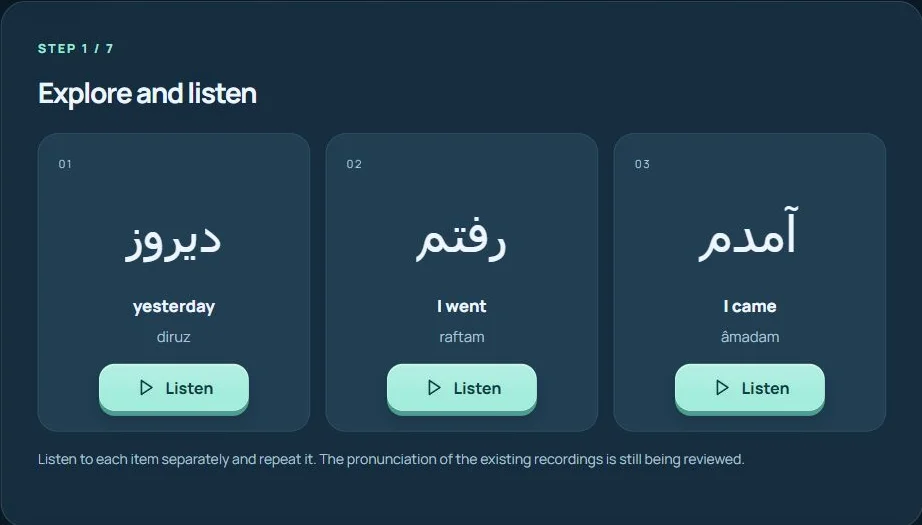
Select “Listen”. Look at the character or text, then repeat it aloud.
Try this step2Read and reveal the meaning
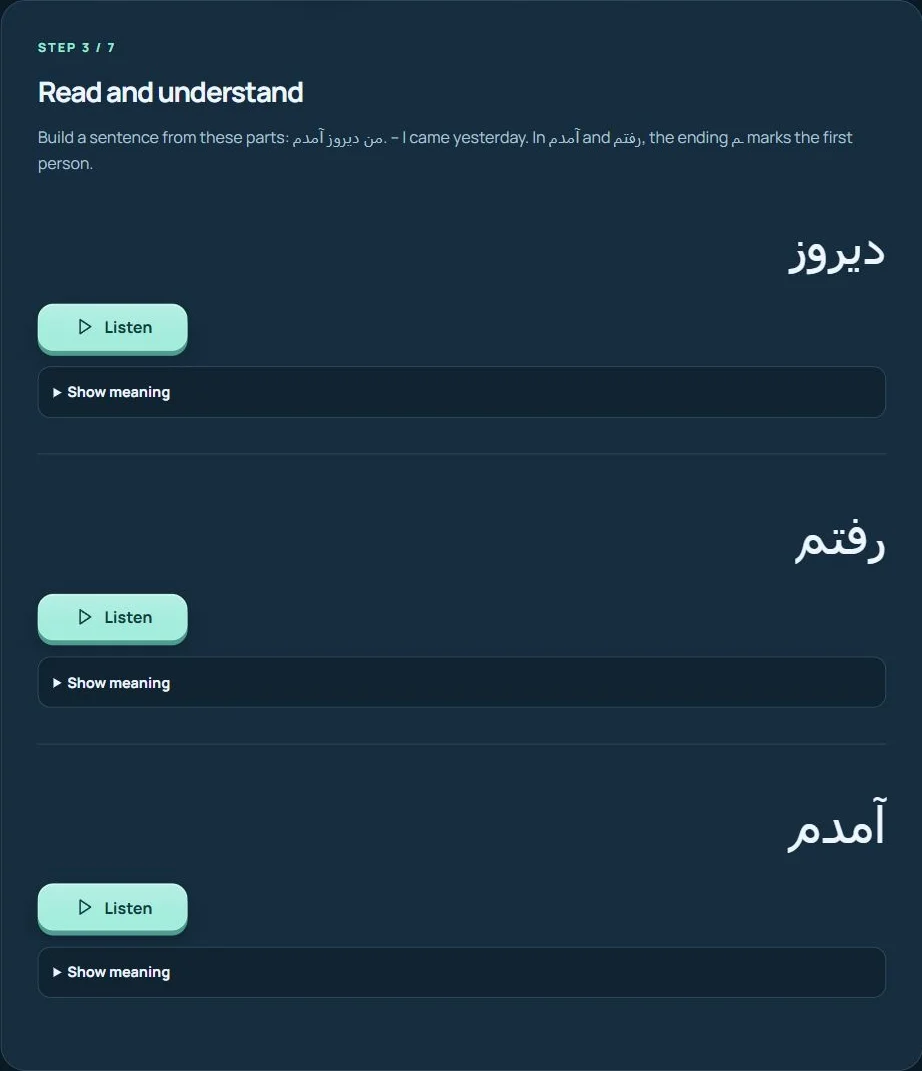
Read on your own first. Then reveal the meaning and compare it with the recording.
Try this step3Practise and check
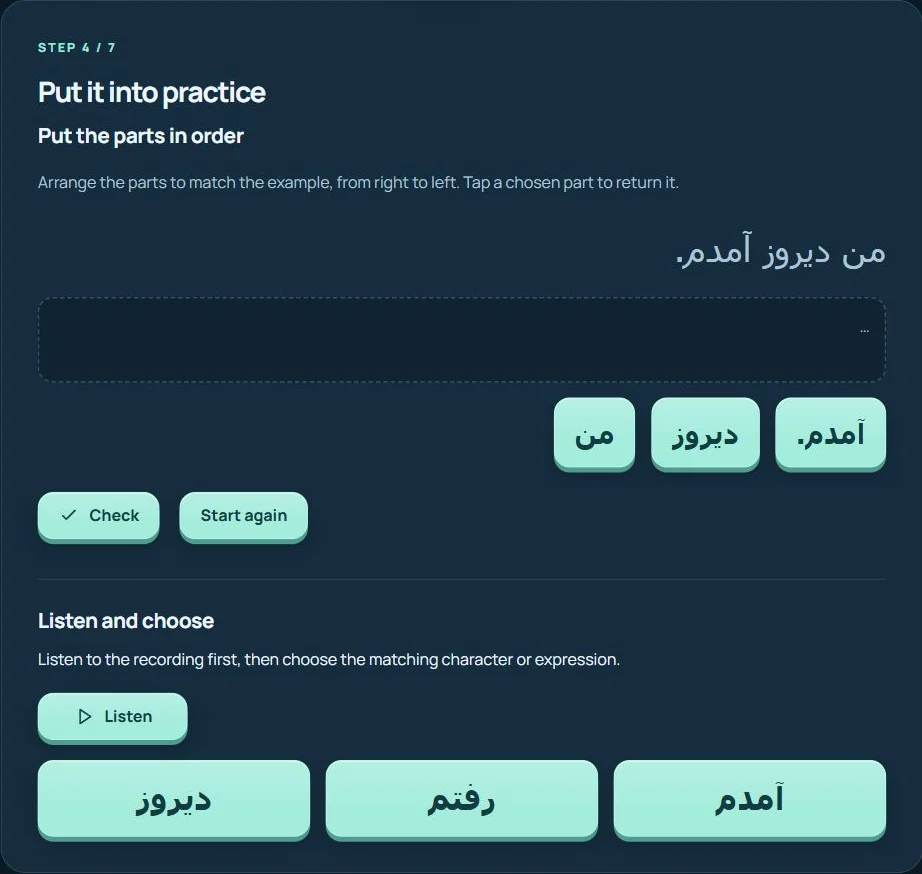
Arrange the tiles from right to left and select “Check”. For the listening activity, play the audio before choosing your answer.
Try this step4Watch the strokes, then write
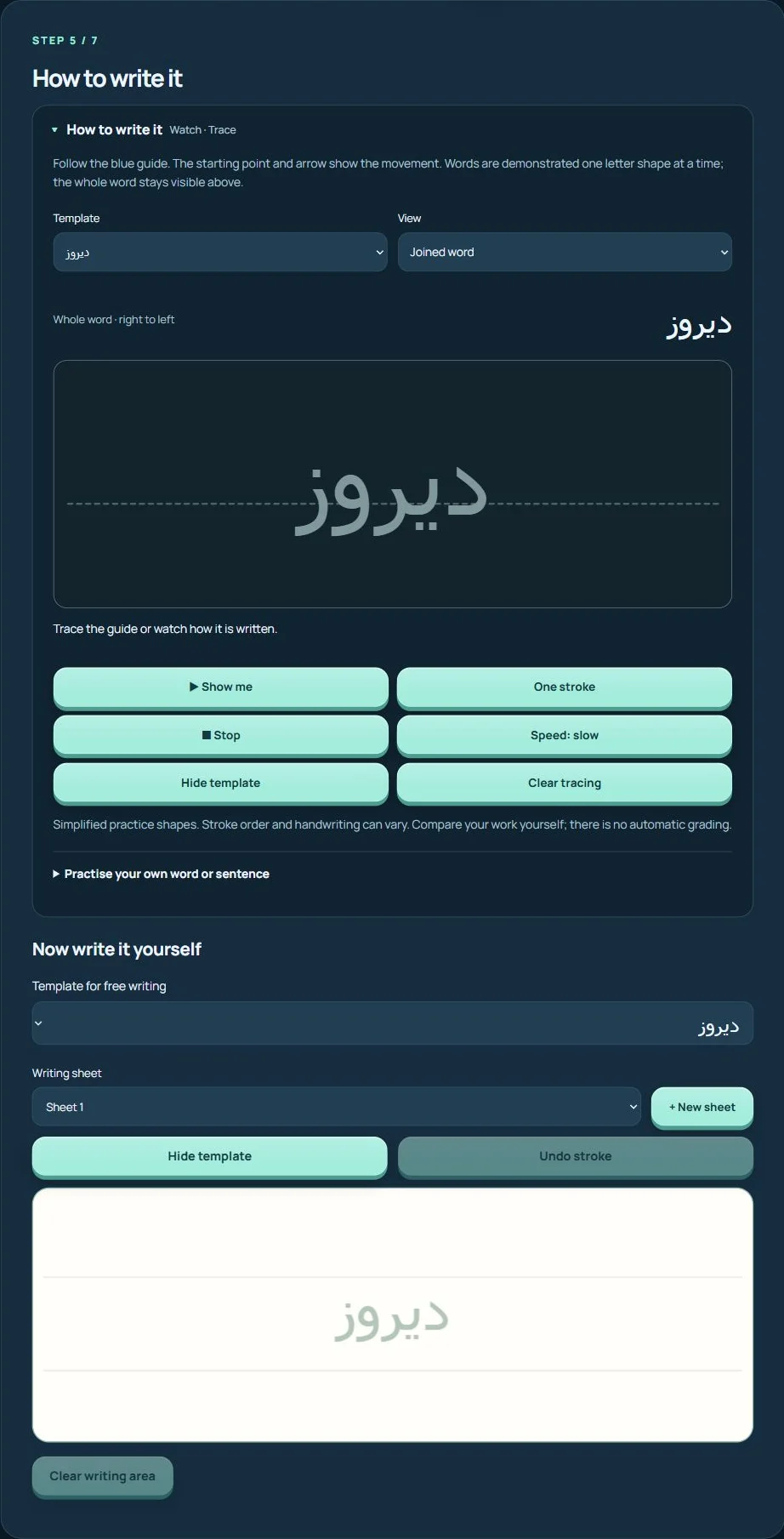
Select “Show me” or “One stroke”. Follow the blue guide, then practise on the free writing canvas and compare your work.
Try this step5Test your understanding
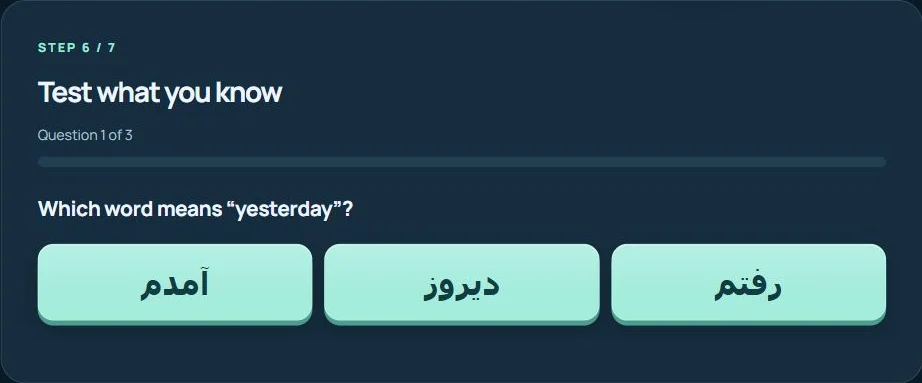
Read the question and choose an answer. Use the feedback to revisit anything you are unsure about.
Try this step6Finish with homework
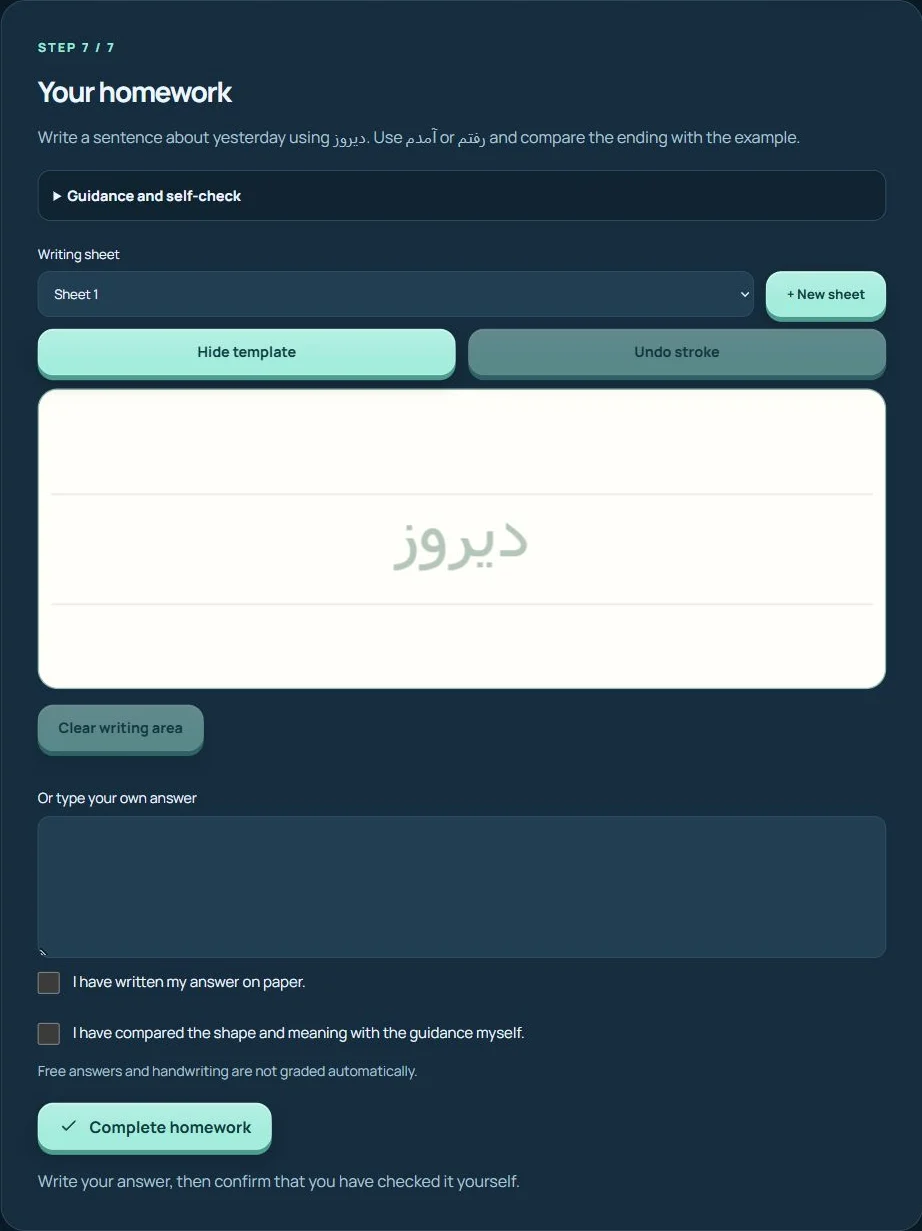
Every lesson ends with homework. Write your response. Compare it with the guidance, confirm your self-check, then complete the homework.
Try this step7Check and save your progress
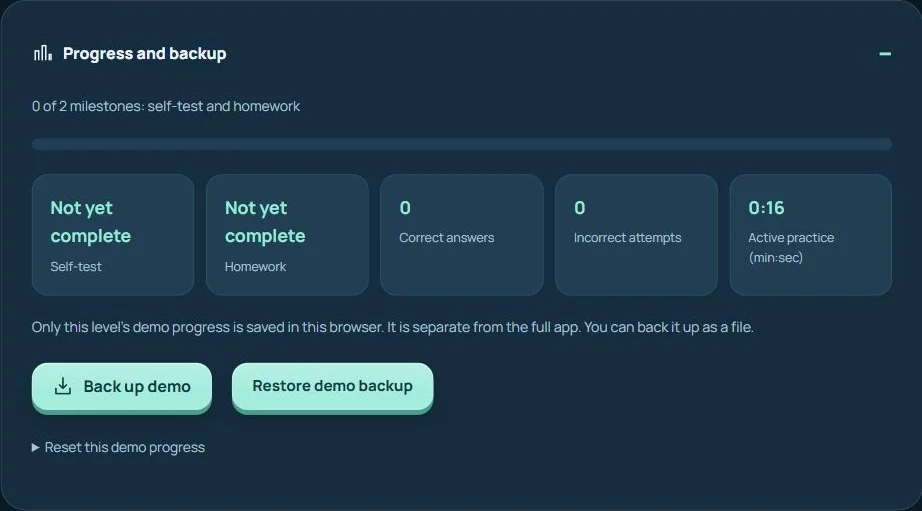
Open the progress and backup panel. Check the self-test and homework results. Export a backup to save this demo’s progress as a file.
Try this stepScreenshots show example progress. The demo and full version keep their progress separately.
This guide explains one level within the Alef Mad main app. Every level includes a free demo. The full level can be unlocked separately with a one-time in-app purchase. Purchases and restoring access are managed through the app store used on your device.
Demo or purchased full version?
Detailed instructions and notes
Applies to the new home screen from Android test build 5 and iOS TestFlight build 10. Earlier builds may show different buttons; update the app when the new test build is available.
- Open the Alef Mad main app. Your existing purchases are checked automatically with the store account on your device.
- If you have purchased D3, find it under “My full versions” and select “Open full version”. You do not need to repeat the demo after closing and reopening the app.
- If you have not purchased D3, its free demo and purchase option remain under “Explore the levels”. Each level is unlocked separately; buying one does not buy the others.
- If a purchased level is missing, select “Restore purchases” on the home screen. Use the same Apple Account or Google Account as for the original purchase. Do not purchase the level again.
After a purchase is confirmed, the demo entry for that level is replaced by direct full-version access. An old demo link also leads to the full version after purchase verification. On Android, an internet connection is currently needed to verify and load full content. Store purchases are separate for Apple and Google; they do not automatically transfer between stores.
Getting started with D3
Detailed instructions and notes
D3 builds on the earlier levels. Start in the language course. Book lessons provide additional depth and may require stronger reading skills.
- Choose English or German as your support language.
- Open “Learn” and select the next appropriate language lesson.
- If you have already started a lesson, use “Continue learning” to pick up where you left off.
Language course and book lessons
Detailed instructions and notes
The language course has 20 lessons. The supplementary library has 56 book lessons. They have separate progress records, so their results should not be treated as a single course percentage.
- In the language course, listen to words, understand examples and practise writing.
- Complete the eight-question self-test and revisit difficult activities later.
- Open the book lessons for additional texts and exercises.
- In a book lesson, work through the self-test and then the final homework step.
Listen and repeat
Detailed instructions and notes
Tap the speaker symbol or audio button next to a letter, word or text. Tap again to repeat the recording. Listen first, then say it yourself.
Recordings come from different sources. Some use synthetic voices with Iranian Persian pronunciation. We are reviewing these recordings and gradually replacing them with Dari pronunciation. Transliteration is an approximate learning aid. Your pronunciation is not assessed automatically.
- Check your volume and tap an audio button.
- Look at the matching text and read its meaning.
- Listen again when needed and repeat it aloud.
Write with touch, a stylus or a mouse
Detailed instructions and notes
Open the writing step or writing guide. In letter practice, the demonstration shows the strokes; the single-step control lets you follow them slowly. Word and sentence practice uses templates and the available writing guidance.
The writing area is for practice, not automatic handwriting recognition. Check the shape, dots, baseline and connections yourself. You can also practise on paper.
- Select the appropriate template and look at it carefully.
- Write in the practice area. The undo control removes only the most recent stroke.
- Hide the template and try writing from memory.
- Compare your writing with the example. “Clear writing area” removes your drawing from the current sheet.
Do homework after the lesson
Detailed instructions and notes
Use the homework link at the end of the relevant lesson. In book lessons, homework is the seventh and final step. Translations and hints support your self-check.
Read the task first and reveal help when needed. Your own sentences should make sense; your own sentences and handwriting are not marked automatically.
- Work through the lesson and its self-test.
- Open the homework that follows.
- Read, write and compare your work with the available help.
- Confirm your self-check wherever a confirmation is offered.
Track the course and the library
Detailed instructions and notes
Statistics distinguish the language course, book lessons and any additional learning areas. Course points and daily targets reflect answered activities.
Active learning time pauses after a period of inactivity. A completed lesson may stay marked as complete even if you score lower when you try it again.
- Open “Progress” and look at the relevant area.
- Revisit difficult activities in the practice section.
- Before changing devices, download the full backup, including the library, homework and saved handwriting.
Back up and restore your progress
Detailed instructions and notes
Your progress is stored locally in the app on your device. Export a backup before changing devices or deleting app data. Restoring purchases restores access to purchased levels; learning progress is restored separately from your backup.
Back up your progress before changing devices or clearing browser data. Each backup belongs to its own level. Keep the file outside the app.
- Open “Progress” or the learning statistics.
- Download a backup and save the JSON file.
- Open the same level on the other device.
- Load the backup, choose the file and confirm that it should replace the progress on that device.
- Check your lessons, homework and saved handwriting afterwards.
If something does not work
Detailed instructions and notes
No sound: Check volume, audio output and headphones, then start the recording by tapping it. Reload the page once if playback gets stuck.
Missing progress: Make sure you have opened the same level on the same device. Restore a previously exported backup within that level. Restoring purchases and restoring learning progress are separate steps. In the browser demos, also check that you are using the same browser; private browsing may discard progress when you close it.
Unclear pronunciation: Note the level, lesson and exact word or passage. Send these details and your suggested pronunciation to support@alefmad.com.
Alef Mad on Windows
Detailed instructions and notes
The Windows main app includes D1–D5, each with a free demo lesson. For current availability and pricing, see Alef Mad in the Microsoft Store. Check the offers shown in the app before purchasing a full level.
Navigation and learning features follow the Android version. Under Sprache / Language, select the German or British flag for the language of explanations. Dari/Farsi remains the language you learn. Writing supports a mouse, touchscreen or stylus.
In the Store version, use the same Microsoft Store account for purchases and restoration. Google Play and Apple App Store purchases do not transfer automatically. Purchase verification and downloading full content require an internet connection.
Progress stays locally in the Windows app. Back it up for each level before changing devices or resetting the app. “Restore purchases” restores access to your purchased levels. It does not restore your learning progress. If there is no sound, check Windows audio output and the volume mixer for Alef Mad.
Still have a question?
Tell us the level, lesson and device so we can help with your specific issue.
support@alefmad.com